How to Scan and Digitize Receipts: Capture, Review, and Export
A practical guide to automatic receipt scanning, OCR, capture methods, app selection, setup, and common scanning fixes.
How to scan receipts automatically is not really a scanning question. It is a habit question. Manual entry fails because it asks people to do tiny accounting work at the exact moment they are busy, tired, or on the way to something else.
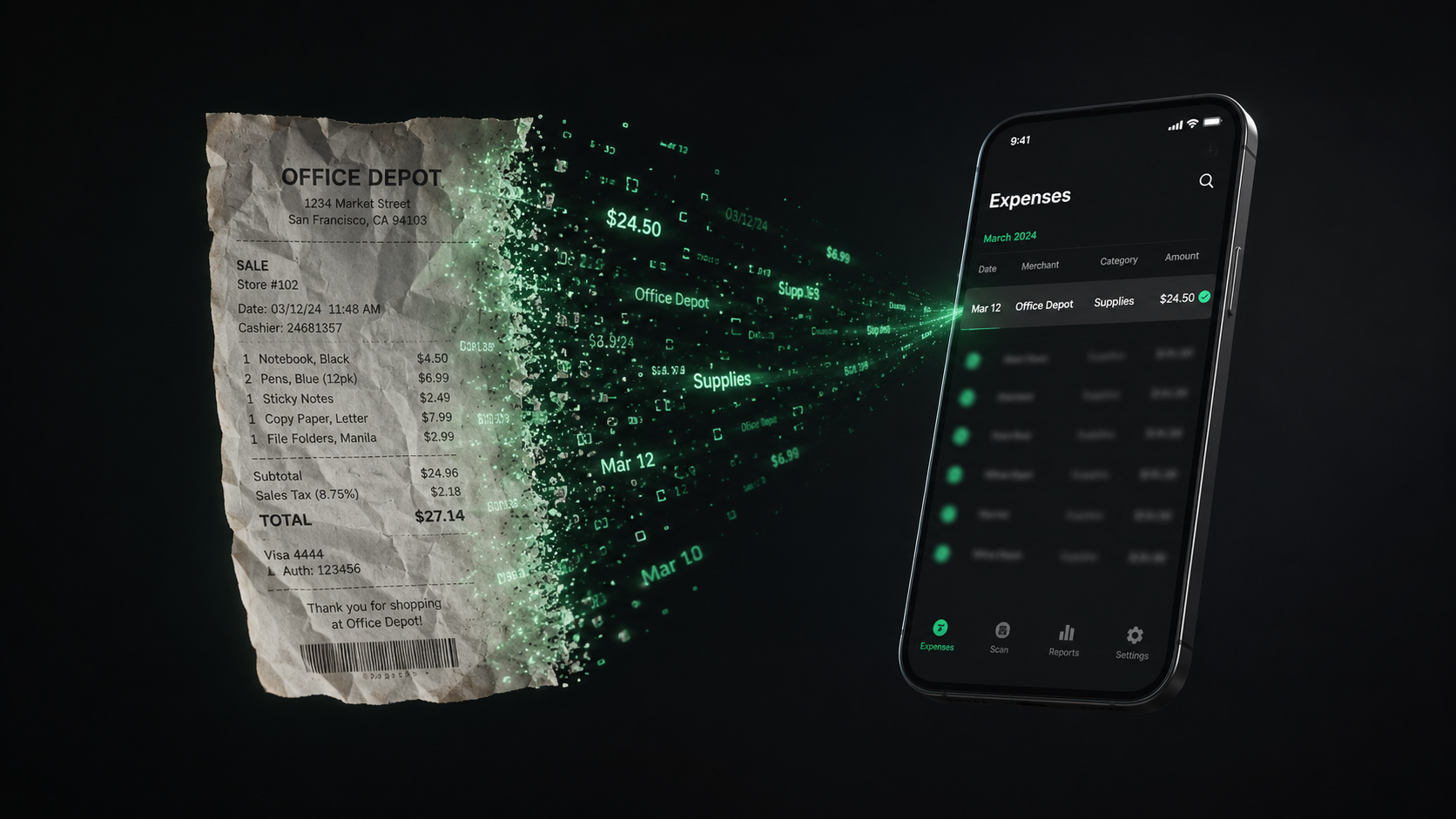
Automatic receipt scanning works when capture is fast and the app turns the image, email, or PDF into useful data: merchant, date, total, currency, and category. ReceiptNest extracts those fields for review; it does not promise separate tax or line-item extraction.
Why manual receipt entry fails
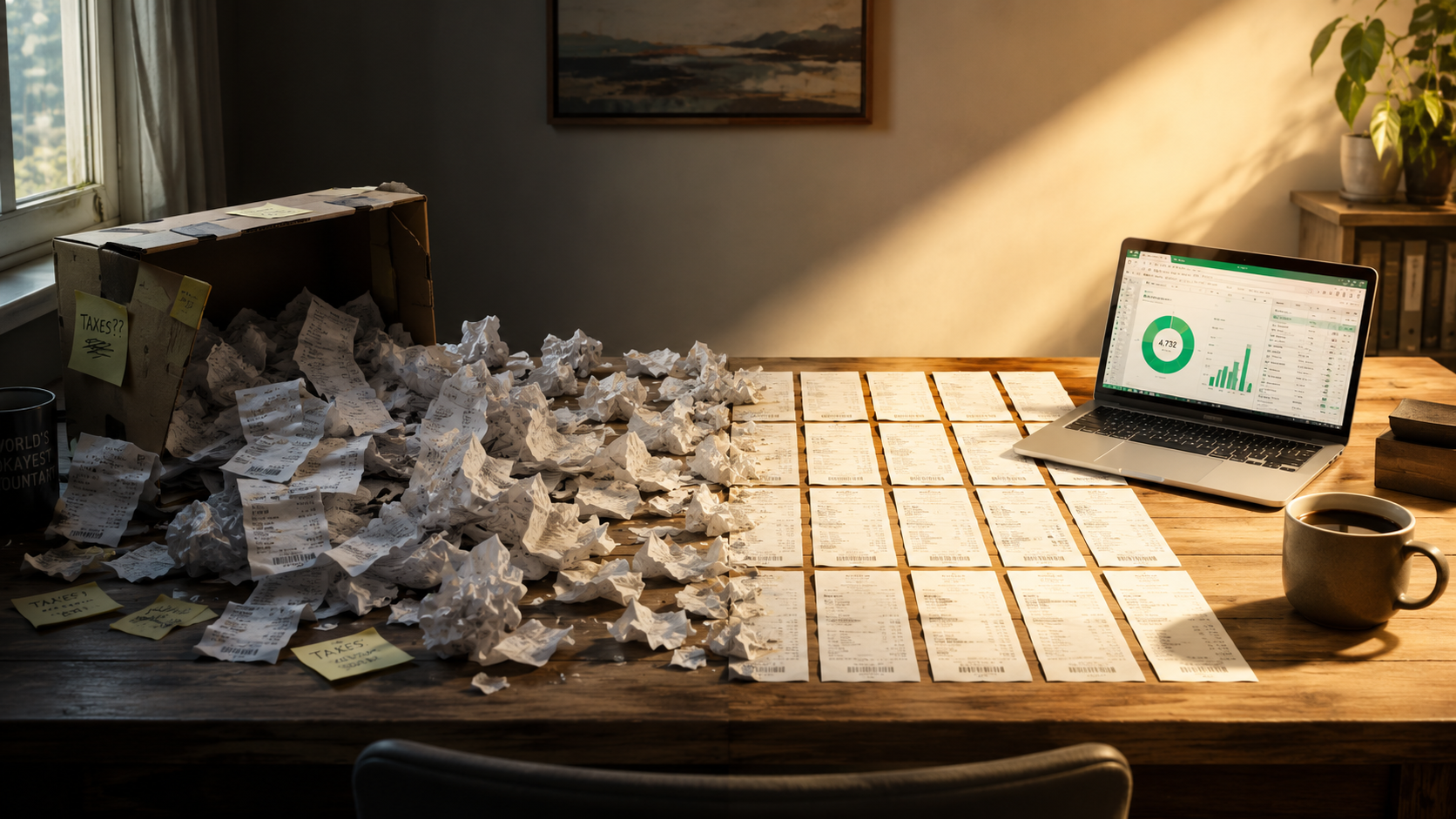
Manual systems feel reasonable on day one. Create a spreadsheet. Type the merchant. Type the total. Add the date. Pick the category. Upload the photo. Then life happens. Two weeks later, the spreadsheet is behind and the receipts are back in your pocket, inbox, and downloads folder.
The friction is small but constant. Automatic scanning reduces repetitive typing. The habit still includes checking the date, amount, currency, and category against the original.
What OCR and AI extraction actually do
OCR reads text from an image. AI extraction goes further by identifying which text matters. A receipt can include a store address, cashier number, loyalty text, item list, subtotal, tax, total, and payment details. Different apps extract different fields. Check whether an app handles the details you need; the original receipt remains important when tax, individual items, or payment details are not separate fields.
The goal
A digitized receipt is not just a picture in the cloud. It is a searchable record with the original proof attached.
Three automatic receipt capture methods compared
| Method | Best for | Watch out for |
|---|---|---|
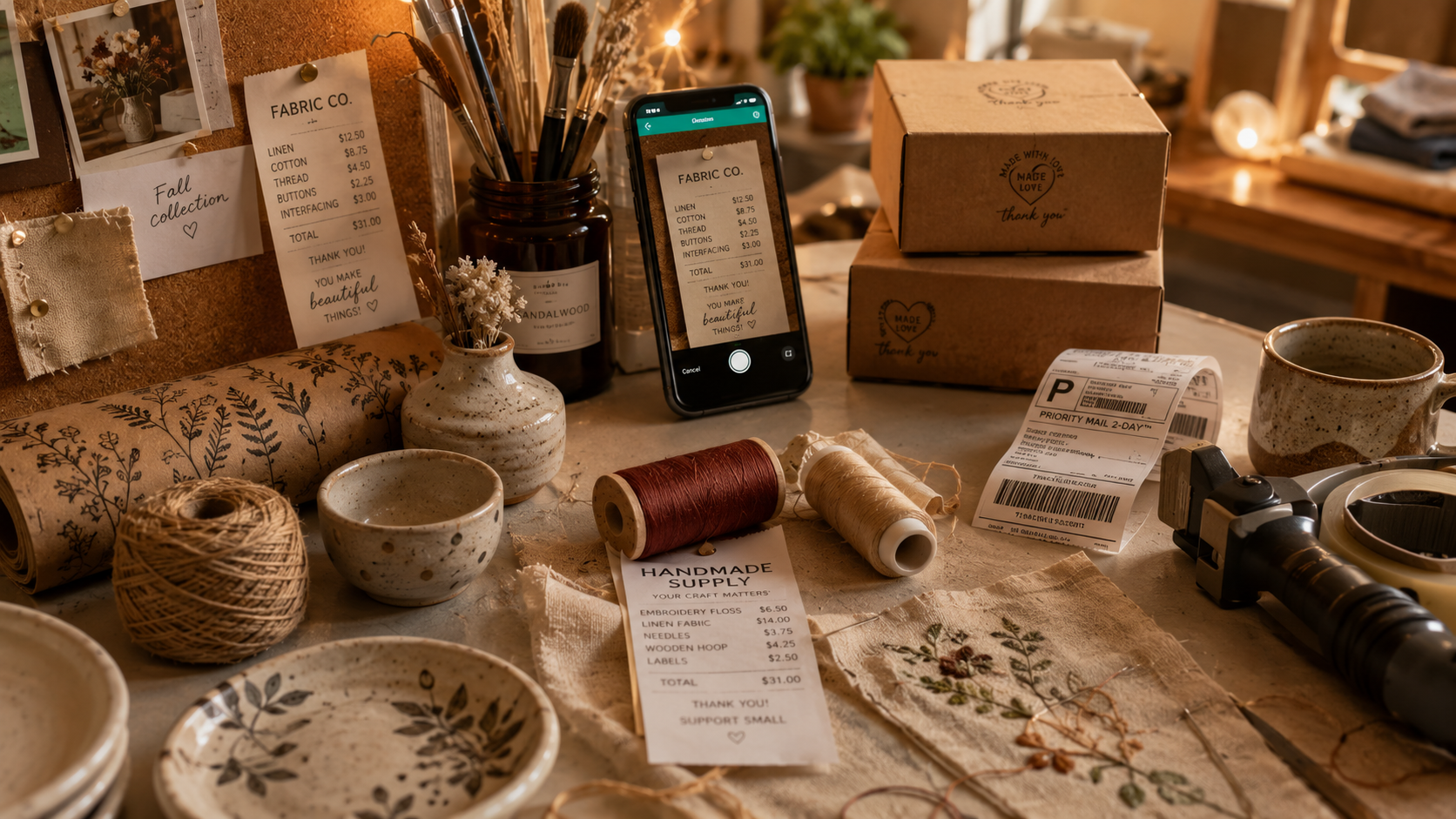
| Photo scan | Paper receipts, restaurants, supply runs | Blur, glare, crumpled paper, cut-off totals |
| Email forwarding | Online orders, subscriptions, software, travel | Multiple inboxes and forwarded message clutter |
| PDF upload | Vendor invoices, wholesale orders, downloaded receipts | Files saved in random folders |
The best receipt scanning app supports all three because real receipts arrive in all three formats. A photo-only app leaves email receipts behind. An inbox-only system misses paper.
What to look for in a receipt scanning app
- Accurate extraction for merchant, date, tax, and total.
- Category suggestions that are easy to review.
- Search by merchant, amount, category, and month.
- Support for photos, PDFs, and forwarded email receipts.
- Export options for tax prep, accounting review, or personal backup.
- A clean mobile workflow that does not require a long form.
Accuracy matters, but workflow matters more. A perfectly accurate app you do not use is worse than a good app that fits your daily routine.
Step-by-step setup for automatic receipt scanning
- 01Choose one app as the home for all receipts.
- 02Scan five recent paper receipts to test photo capture.
- 03Forward three email receipts to test inbox workflow.
- 04Upload a PDF receipt or invoice.
- 05Review categories and rename anything unclear.
- 06Set a recurring monthly review so the system stays clean.
Fast start
Do not migrate your entire history on day one. Start with new receipts this week, then backfill old records only when you need them.
Common scanning problems and fixes
- Faded receipts: scan immediately because thermal paper fades fast.
- Crumpled paper: flatten the receipt and use strong side lighting.
- Glare: tilt the receipt or move away from direct overhead light.
- Long receipts: capture the entire receipt, especially the total and date.
- Foreign currencies: add a note if currency conversion will matter later.
Most scanning problems are capture problems. The cleaner the original image or file, the better the extracted record will be.
FAQ
Can receipts be scanned automatically without typing totals?
Receipt scanning apps can extract fields such as merchant, date, and total. You still need to review the results, especially on blurry images, unusual layouts, and mixed currencies.
Is a photo of a receipt enough?
A clear photo can be enough for organization when it preserves the important receipt details. Keep records readable and available for as long as they may be needed.
What is the best way to digitize old receipts?
Start with receipts you still need, scan in batches, review extracted data, and add business-purpose notes for anything that will be hard to understand later.
Finally know where your money goes.
Snap a photo, forward an email, upload a PDF. ReceiptNest keeps everything organized automatically.