
Scan a receipt. Review the details. Keep a usable record.
A receipt photo is a useful start. ReceiptNest turns it into a record with a merchant, date, total, currency, and suggested category, while keeping the original available for review. Upload a photo or PDF and check the result before you use it.
Up to 50 receipts on Starter. CSV export included. View plan details.
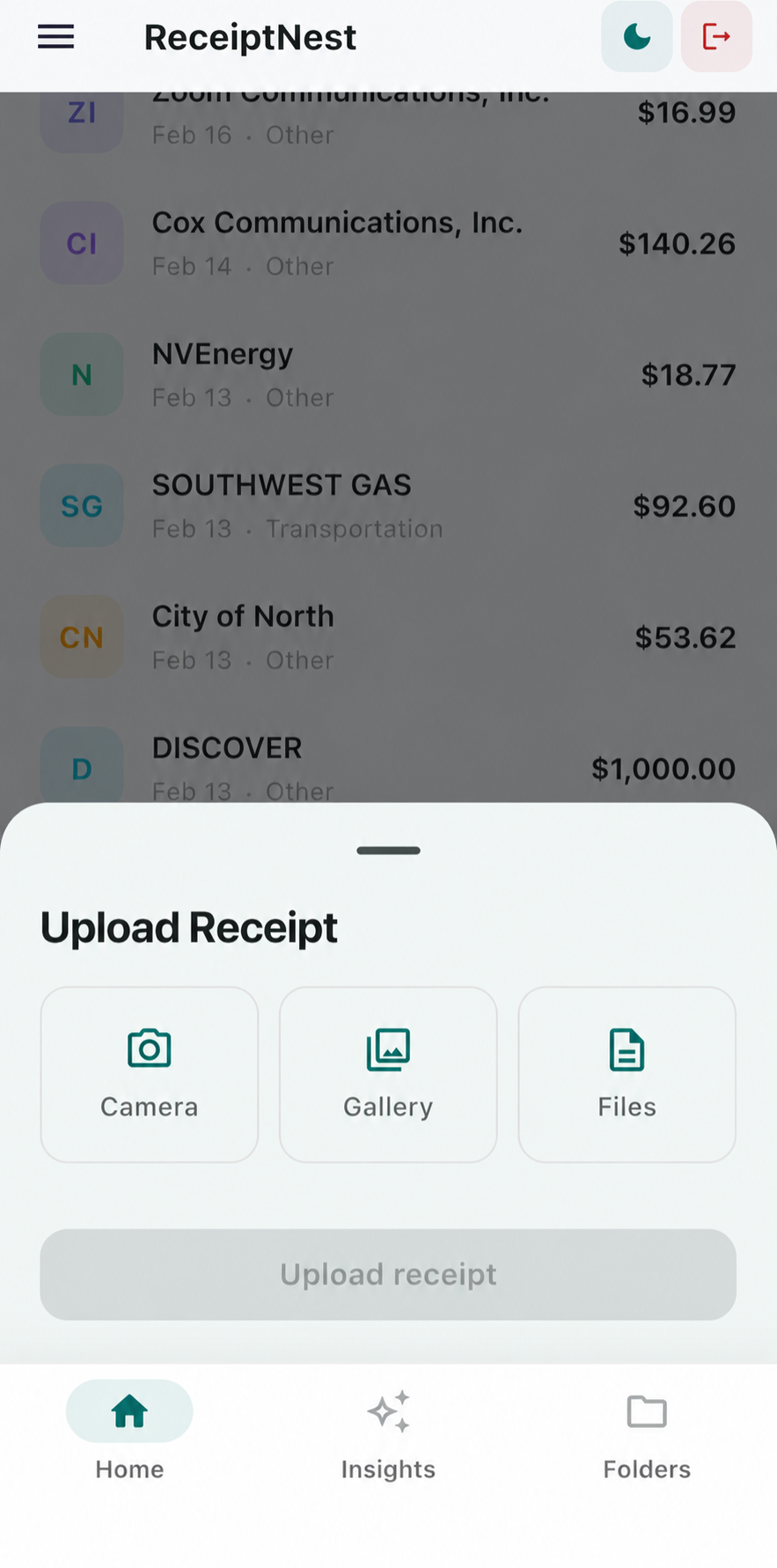
Less retyping, with room to check and correct.
- 01
Capture a readable receipt
Place the receipt flat, include the merchant and final total, and avoid glare or cut-off edges. Upload the photo or a receipt PDF. A clear original gives extraction a better starting point than a blurred screenshot.
- 02
Review the extracted record
Compare the merchant, date, and final amount with the source document. Check whether the amount includes tax and whether a discount or refund changes it. Correct mistakes rather than assuming every extraction is accurate.
- 03
Organize and export
Confirm the category, find the record in its month, and export to CSV when you need spreadsheet data. Scanning is the capture step; reviewing and retaining the source document make the record useful.
What a receipt record contains
Illustrative fields—not a measured OCR result or an accuracy benchmark.
| Field | Example | What to verify |
|---|---|---|
| Merchant | Example Office Supply | Use a recognizable seller name |
| Date | 2026-09-04 | Check the purchase date |
| Total / currency | 27.48 USD | Use the final amount paid |
| Category | Office expense | Review the suggested category |
This example does not promise line-item or separate sales-tax extraction. Verify the fields in your own receipt record.
When a scan needs attention
Faded paper, unusual date formats, long receipts, handwriting, or an image containing several documents can produce incomplete results. Try a clearer capture and review the record. If a file keeps failing, contact support without posting financial documents publicly.
CSV is a receipt summary, not the whole document
The monthly export contains merchant, date, and amount. It is useful for spreadsheet review, but it is not a line-item transcript or a native Excel workbook. The CSV guide shows the format and its limitations before you sign up.
ReceiptNest is receipt-organization software, not tax or accounting advice. Review important details against your original records.
Before you choose
Is a receipt scanner the same as a document scanner?
A document scanner usually preserves an image or PDF. ReceiptNest also extracts purchase fields so receipts can be organized and reviewed as records.
Does it scan receipts without any manual work?
It reduces data entry, but you should still review the output and correct mistakes. No automatic scanner should be treated as infallible.
Can I scan a receipt from email?
Forward a receipt email to the address provided in your account. Supported attachments and email-body receipts follow the receipt-ingestion workflow.
Can I export scanned receipts to Excel?
You can download a CSV of receipt records and open it in Excel or Google Sheets. This is not a promise of native XLSX export or line-item extraction.
Take the next useful step
Try it with a receipt of your own.
Start with a few records, check the results, and see whether the workflow fits. Up to 50 receipts on Starter.
Start free on the webCompare plans