How to Turn Receipt PDFs into a Monthly Excel Expense Sheet
A folder of PDFs preserves the receipts. A checked spreadsheet makes the month easier to review. Keep both, and make sure the numbers refer to the same purchases.

To turn receipt PDFs into a useful Excel sheet, extract or enter one row for each purchase, check the values against the original documents, and import the rows into your workbook. Then confirm the dates, amounts, and total before adding any analysis.
For a small batch, manual entry may be enough. With ReceiptNest, you can upload the receipts, review the extracted details, and export a monthly CSV that Excel can open. This guide walks through that existing workflow, including the fields you will need to add yourself.
Prepare one month of receipts and keep the originals
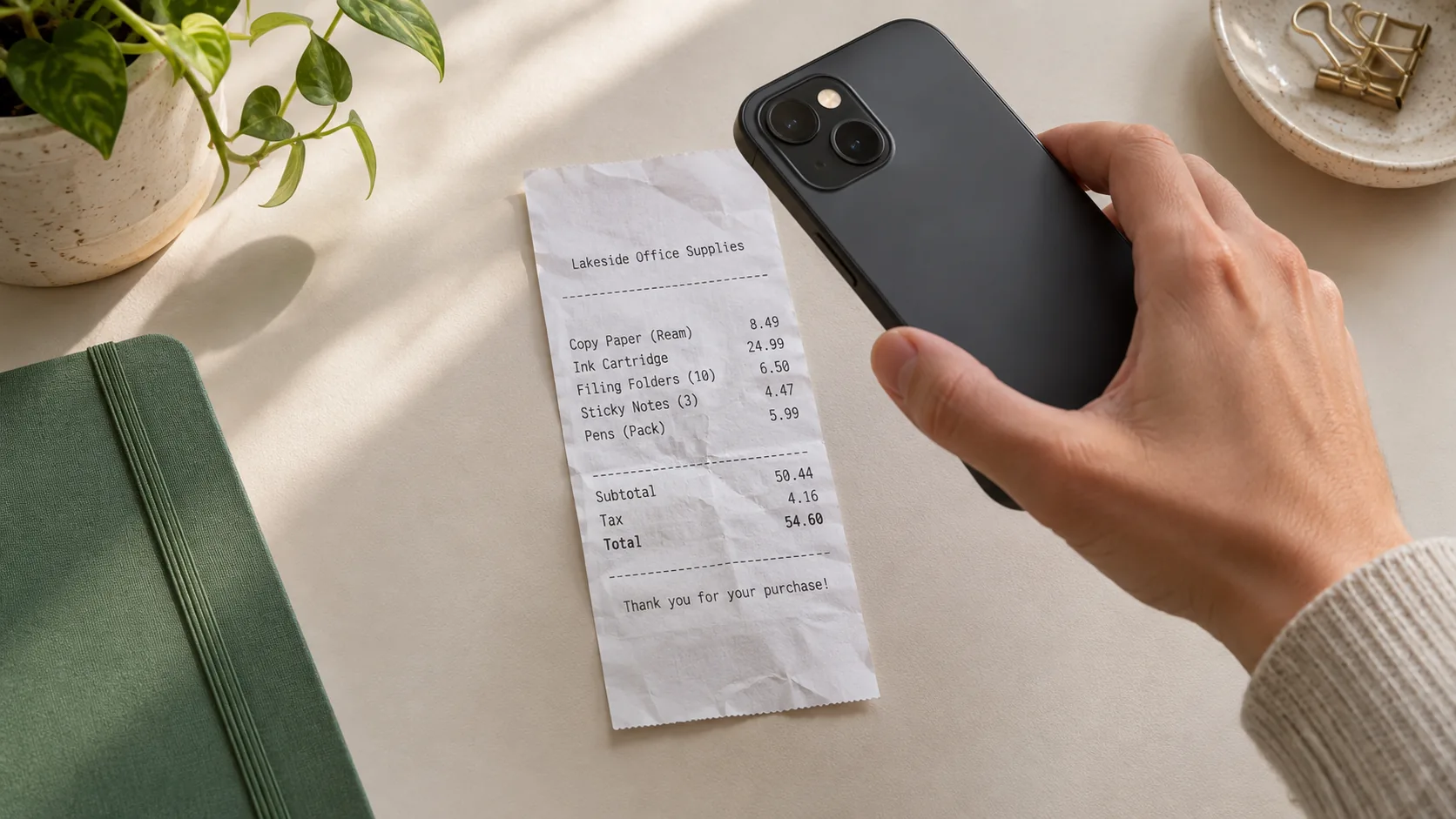
Gather the PDFs you want to review. A PDF may contain selectable text or a scanned image, so copying text out of it may not produce a clean table. Whatever method you use, keep the source document available while checking the result.
- 01Choose a purchase month and a single currency for the first batch.
- 02Open each document and check the merchant, purchase date, final paid amount, and currency.
- 03Check whether two files refer to the same purchase, especially when one is an invoice and another is a payment confirmation.
- 04Keep incomplete, unreadable, refunded, or otherwise uncertain records in a review queue rather than forcing them into a clean total.
For this walkthrough, use one receipt per file. A PDF containing several separate receipts needs to be reviewed and separated or grouped appropriately before expecting one record per purchase. Several pages can also belong to one receipt, so page count alone is not a transaction count.
Read the PDF, then verify the purchase record
Upload a receipt PDF to ReceiptNest and wait for its extraction. Compare the recorded merchant, date, and amount with the original. Start with the paid total, not a subtotal, tendered amount, or remaining balance. Keep tax already included in that total from being added a second time.
| Check | Question to answer against the PDF |
|---|---|
| Merchant | Is this the seller, rather than the bank or person who forwarded the document? |
| Date | Is this the purchase date, rather than the upload, forwarding, or due date? |
| Amount | Is it the final amount paid for this purchase? |
| Currency | Which currency does the document support? A dollar symbol alone may be ambiguous. |
| Original | Can you open the complete source document from the saved record? |
Correct an extraction error in the record before exporting. If the original does not establish a value, keep it for review. A spreadsheet looks tidy even when its source values are wrong; its appearance is not a check of the receipts.
Work through three example purchases
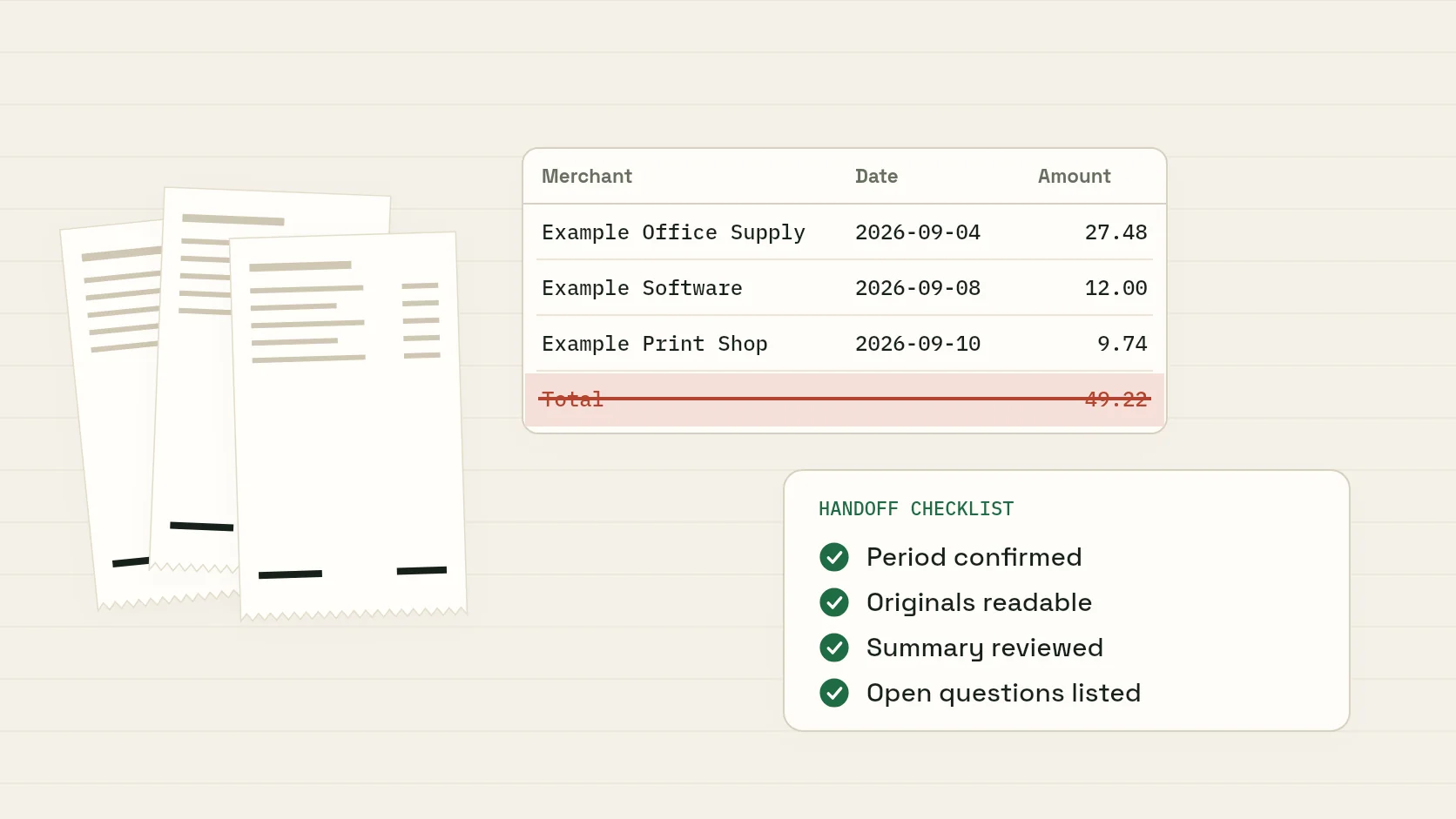
The following fictional purchases match the public sample monthly CSV. All three are USD. They are examples of reviewed records, not a benchmark of automatic extraction accuracy.
| Merchant | Date | Amount |
|---|---|---|
| Example Office Supply | 2026-09-04 | 27.48 |
| Example Software | 2026-09-08 | 12.00 |
| Example Print Shop | 2026-09-10 | 9.74 |
| Total | 49.22 |
Check the arithmetic separately: 27.48 + 12.00 + 9.74 = 49.22. Keep each original PDF with its record so you can answer a question about any one of those purchases later.
The sample can be inspected before signup
The receipt-to-CSV page has the downloadable fictional file used here. It shows the current monthly-export format. Downloading that sample does not require an account; processing and exporting your own receipts does.
Export the month and understand its columns
In ReceiptNest, open the relevant month’s download menu and choose its CSV export. Monthly and folder exports contain Merchant, Date, and Amount, followed by a Total row. Category exports also contain Category.
The current monthly CSV does not include currency, notes, links to originals, separate tax, or line items. It is not a native XLSX workbook. Keep the original documents and add any extra context in a separate working copy.
| Information you need | How to preserve it in this workflow |
|---|---|
| Currency | Verify it on the original records and add a Currency column to your working copy. |
| Project or business context | Add your own Project or Purpose column; receipt notes are not exported in the monthly CSV. |
| A way back to the original | Keep a separate source index or add your own Original filename column. These links are not generated by the CSV export. |
| Tax or line-item details | Read the original document and record the required detail separately. Do not infer it from the summary amount. |
Do not use a combined monthly total when the batch contains different currencies. Separate the rows by verified currency before summing. The monthly export does not convert amounts to a common currency.
Import the CSV into Excel and check the preview
In supported desktop versions of Excel for Windows, use Data → From Text/CSV, select the file, inspect the import preview, and load the data. Check the delimiter and how dates and numbers are interpreted before treating the sheet as ready.Microsoft: import CSV files in Excel
On a Mac, the exact menu depends on the Excel version; Microsoft documents the Get Data and file-import options. If your interface differs, follow the instructions for your edition.Microsoft: import files in Excel for Mac
- 01Confirm that Merchant, Date, and Amount occupy separate columns.
- 02Compare a date and a decimal amount with the CSV and original receipt. Check that an amount can be used as a number.
- 03Remove the final Total row from the transaction table before calculating a new sum or importing the rows elsewhere.
- 04For the three example purchases in rows 2–4, use =SUM(C2:C4). The result should be 49.22.
- 05Save your working file as an Excel workbook if you add formulas, formatting, or extra sheets, and retain the original CSV as the exported snapshot.
Do not count the summary as another purchase
The sample has three purchase rows and one Total row. Summing all four amount cells produces 98.44, which is double the actual 49.22. When adding more months, exclude each export’s Total row before combining the purchases.
Make the spreadsheet useful to the next person
Add the context your reviewer needs, using clearly named columns. A project note or currency you add is your own annotation, not a field exported by ReceiptNest. Ask the person receiving the file which records and supporting documents they need.
- Keep purchases and refunds distinguishable rather than hiding their treatment in a single number.
- Use a source filename or index that still identifies a document after the spreadsheet is shared.
- Retain receipt originals alongside the summary; a CSV contains the recorded values, not the PDF images.
- Check the destination’s required columns before using a spreadsheet as an accounting-system import.
Try the process with one receipt first: open the PDF, verify its record, export the month, and find that purchase in Excel. Once that round trip works, repeat it for the rest of the month. The useful result is a number you can trace back to evidence.
FAQ
Can I convert receipt PDFs to Excel without a receipt app?
Yes. For a small batch, you can enter the values directly into a spreadsheet and retain the PDFs. Check each record against its source and avoid recording the same purchase twice.
Does ReceiptNest export a native Excel workbook?
The workflow described here exports CSV, which Excel can import. The monthly CSV contains Merchant, Date, and Amount plus a Total row. It is not native XLSX export or a line-item conversion.
Why is my receipt total twice what I expected?
Check whether your formula includes both the individual purchase rows and the export’s final Total row. In the sample, the purchases total 49.22; including the summary again gives 98.44.
Can I combine several currencies in one monthly total?
Keep verified currencies separate unless you deliberately apply and document a conversion outside this workflow. The monthly CSV has no currency column and does not perform currency conversion.
Put this into practice with ReceiptNest
Upload one receipt PDF, compare the extracted merchant, date, and amount with the original, then try the monthly CSV in your spreadsheet.
Prepare your first receipt for exportCreate a free account to get started.