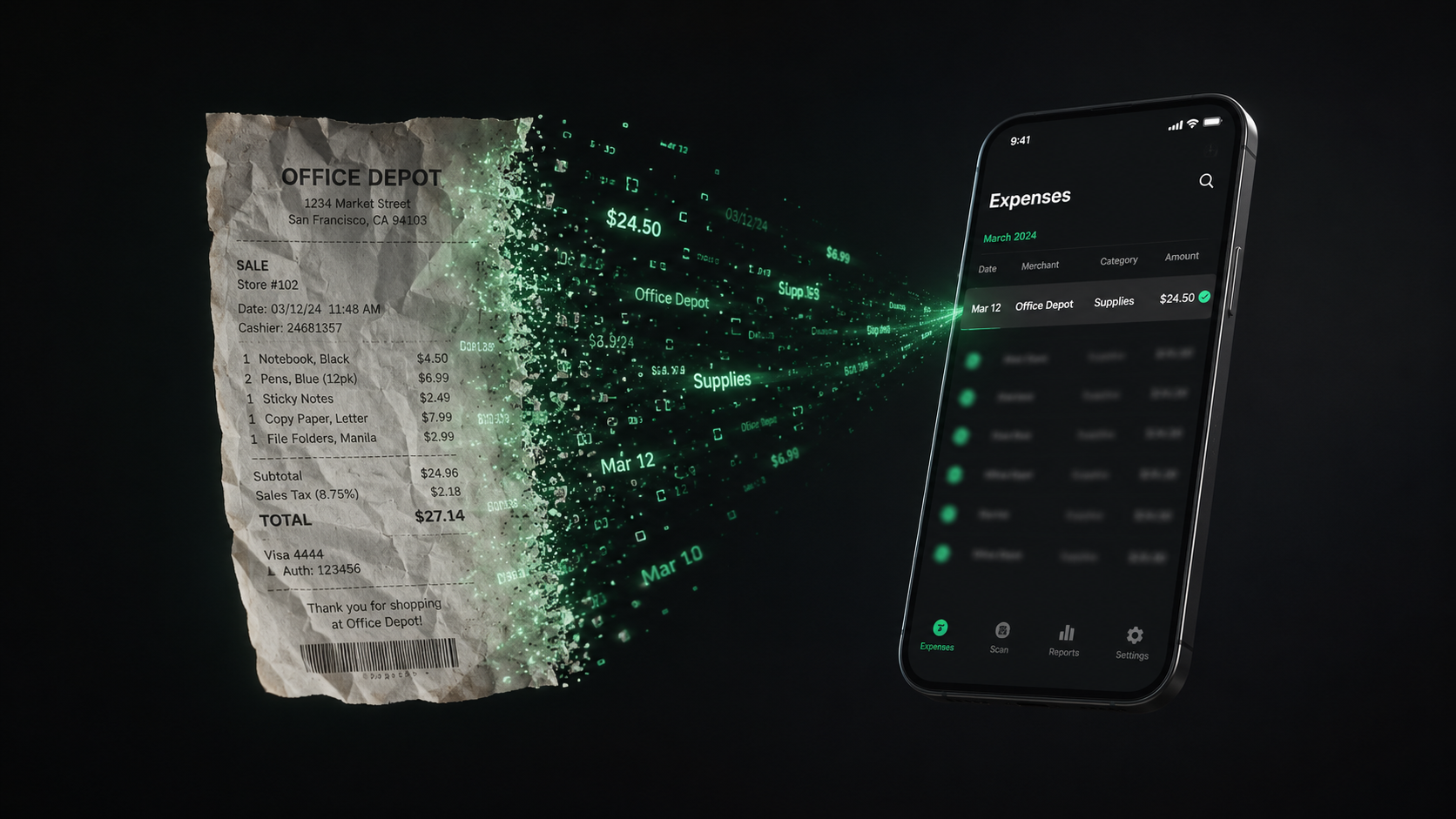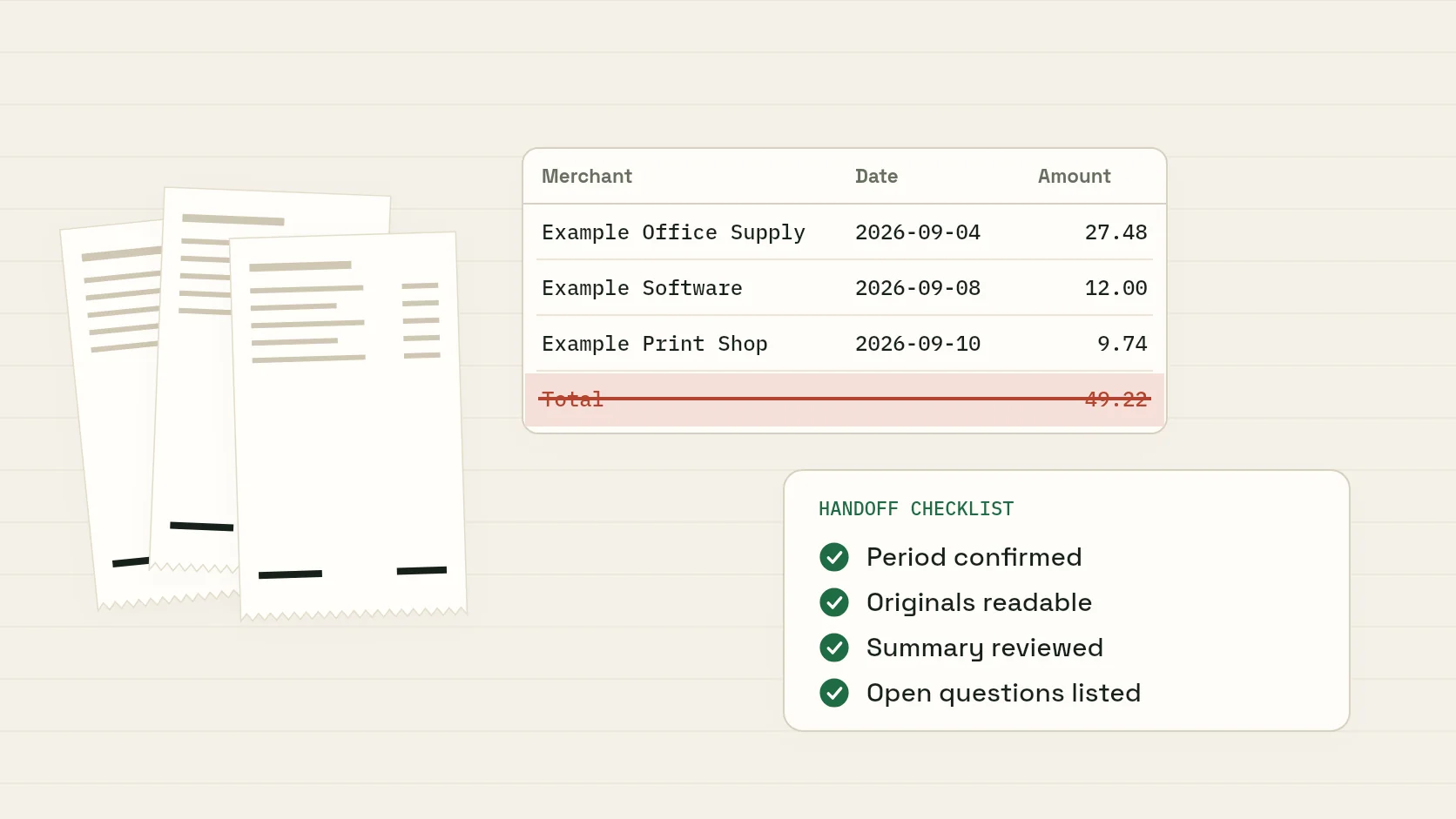
Can ChatGPT or Claude Scan Receipts? A Workflow You Can Check
A chat assistant can help turn a receipt image into a draft row. Keep the original, ask it to mark uncertainty, and check the result before adding it to your records.
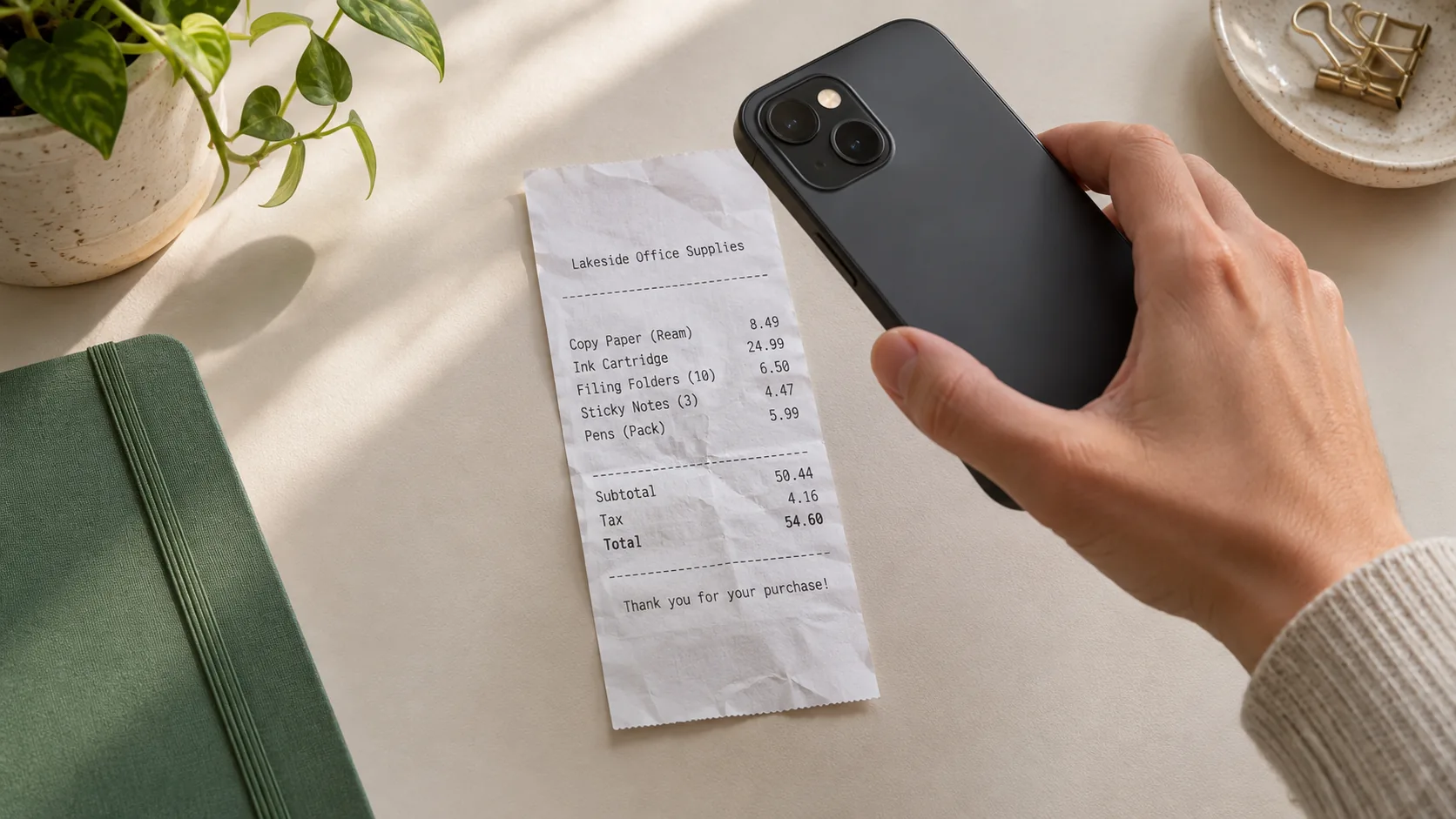
Yes. ChatGPT and Claude can analyze uploaded images, so you can ask either assistant to read a receipt and draft a table of purchase details. Start with one clear image, request explicit handling of unreadable fields, and compare the answer with the original. A plausible table still needs checking.
For occasional transcription, that can be a useful workflow. For an ongoing receipt collection, also decide where the original documents live, how you will find them later, and how you will avoid counting a purchase twice. This guide includes a prompt and a fictional example you can use to evaluate the approach.
What ChatGPT and Claude can do with a receipt image
OpenAI documents image uploads and image analysis in ChatGPT. A readable receipt photo can be supplied as an image for a question about its contents. Availability and upload allowances depend on the account and settings; check the current documentation rather than planning a recurring workload around a fixed free allowance.OpenAI: file and image uploads in ChatGPT
Anthropic documents image and PDF uploads in Claude. Its file guide explains supported formats and differences in how files are processed. If a PDF fails to expose the receipt details you need, try a clear image of that receipt and verify the response against the source.Anthropic: supported files and image uploads
Neither capability establishes which assistant reads your receipts more accurately. We have not run a comparative accuracy benchmark. Try the same representative documents in the tools you are considering and count the fields that need correction.
A receipt extraction prompt you can copy
Attach one receipt image and use the following prompt. Assign the source identifier yourself so the output can be linked back to the right document.
Copy this prompt with your receipt image
Read the attached receipt and produce one row for this purchase. Use these columns: Source ID, Merchant, Purchase date, Total paid, Currency, Tax shown, Uncertain fields. Use Source ID r001. Copy only values supported by the receipt. Use YYYY-MM-DD only when the date is unambiguous; otherwise preserve the printed date and flag it. Use the final paid total, not the subtotal. Keep tax separate and do not add it again to the final total. If a value is missing or unreadable, write UNKNOWN and explain why in Uncertain fields. Do not infer currency from the dollar symbol alone. Do not decide whether this purchase is tax deductible. Below the row, list anything I should verify against the image. Do not include a grand total row.
This prompt is a proposed workflow, not a guarantee that an assistant will follow every instruction. If you request CSV, check that commas in merchant names are quoted and that amounts open as numbers in your spreadsheet. Add your business purpose or project yourself; the receipt cannot tell the assistant why you bought something.
Check the subtotal, tax, currency, and final total
Suppose a fictional receipt says Example Office Supply, November 3, 2026, subtotal USD 40.00, tax USD 3.20, total paid USD 43.20. It should produce the following reviewed values. This is an illustrative target, not output from a live model test.
| Field | Reviewed value | Common error to catch |
|---|---|---|
| Merchant | Example Office Supply | A guessed or shortened seller name. |
| Purchase date | 2026-11-03 | Using the upload date or reversing month and day. |
| Total paid | 43.20 | Taking 40.00 from the subtotal line. |
| Currency | USD | Guessing a currency when the document only shows $. |
| Tax shown | 3.20 | Adding tax to 43.20 a second time. |
| Source ID | r001 | Losing the connection to the original image. |
If the receipt instead prints 03/11/26 with no context to resolve the order, retain that printed value in your working record and check it before assigning a normalized date. If the paper is cropped or faded, ask for a better source rather than filling the gap with a confident guess.
OpenAI identifies unclear images and image interpretation errors among the limitations of image inputs. Reviewing the answer against the document remains part of the workflow.OpenAI: image input limitations
Chat assistant, spreadsheet, or dedicated receipt app?
| Approach | Useful for | What you maintain |
|---|---|---|
| ChatGPT or Claude plus a folder | Occasional extraction or questions about a small set of documents. | The prompt, field review, original-file archive, duplicate checks, and transfer to your working sheet. |
| Spreadsheet plus original files | Custom columns and calculations you want to control. | Data entry or import, source links, consistent dates and currencies, and formulas. |
| ReceiptNest | Repeated capture of photos, PDFs, and deliberately forwarded email receipts. | Review of AI-extracted details, missing purchases, project notes, and exported summaries. |
Use a chat assistant when the immediate task is reading or discussing a document. Consider a dedicated organizer when the recurring task is collecting receipts and retrieving their originals by merchant or month. If you already maintain a reliable folder and spreadsheet, test whether another tool actually saves you work.See what a dedicated receipt organizer adds
ReceiptNest’s monthly and collection CSVs contain merchant, date, and amount, with a final Total row. They do not include every custom field in the prompt above. Keep extra notes separately, review currency before combining records, and remove the summary row before calculating another total.Download the sample export before choosing a workflow
Check what you are sharing before uploading
Use only documents you are permitted to share with the service you choose. Check the current account’s data-use and retention settings, especially when a receipt includes customer details or other private information. Keep a redacted working copy separate from the retained original when redaction is appropriate.
A dedicated receipt app also processes data. Review ReceiptNest’s cloud storage and AI processing explanation before choosing where to keep your records.Read how ReceiptNest handles receipt data
Evaluate the workflow with five representative receipts
- 01Choose a clear photo, a long receipt, an emailed purchase, a PDF, and a receipt with a difficult date or currency.
- 02Give each document a stable source identifier and preserve its original.
- 03Run the same extraction request in each tool you are evaluating. Record the tool and date of your trial.
- 04Check merchant, date, final total, and currency field by field. Record unreadable values separately from wrong answers.
- 05Time the corrections and the filing step. Try finding one original again the next day.
- 06Open the final spreadsheet and check that each row represents one purchase and that no summary row is counted as another receipt.
Five receipts will not establish a general accuracy rate. They can reveal whether a workflow handles the documents you actually receive and how much review you need. Choose on that basis before importing a backlog.Watch the ReceiptNest upload and review walkthrough
FAQ
Can ChatGPT turn receipts into a spreadsheet?
You can ask ChatGPT to read an uploaded receipt image and draft table or CSV text. Check every field, preserve the original, and verify the imported column types before using the sheet. File creation features and limits depend on the account.
Can Claude read receipt photos and PDFs?
Claude supports image and PDF uploads. Check the current file guide for supported formats and processing limits. Try a clear receipt image when a document’s visual details are not available in the response.
Which is more accurate for receipt scanning, ChatGPT or Claude?
This guide does not establish an accuracy winner. Test both with the same receipts and count field corrections, unresolved values, and filing time. Model, document quality, and workflow can affect your result.
Does ReceiptNest integrate directly with ChatGPT or Claude?
The workflow described here does not include a native ChatGPT or Claude integration. ReceiptNest captures and organizes receipts in its own app; inspect its CSV format if you want to use a summary in another tool.
Put this into practice with ReceiptNest
Upload a representative receipt, check the extracted fields, and find the saved original before deciding whether the app fits.
Try the receipt workflow with one documentCreate a free account to get started.