A Receipt Folder System You Can Find Things In
A folder is useful only if you can retrieve the receipt. Here is a simple structure for paper slips, PDFs, and email purchases, with a worked example.
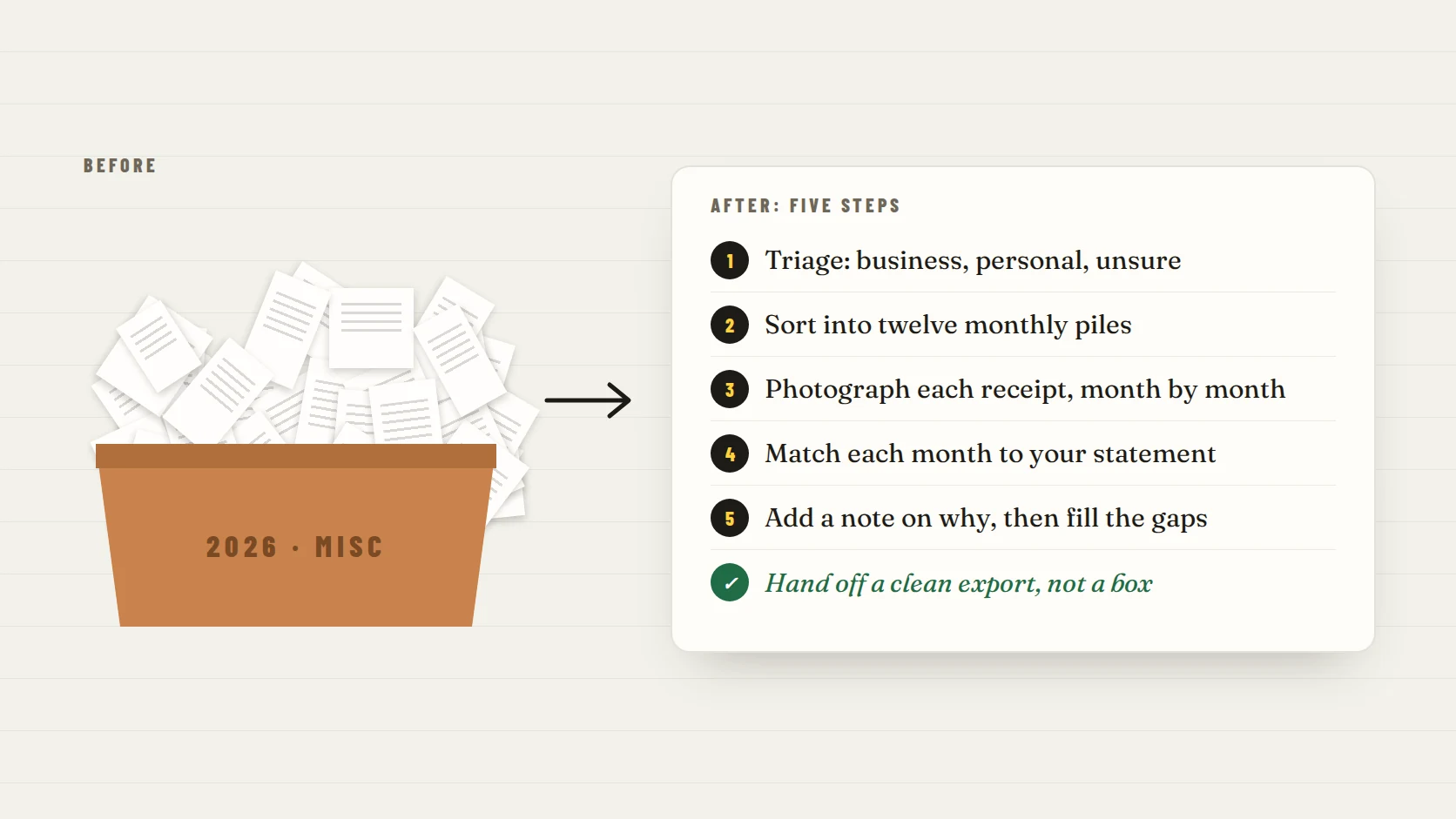
Start with a year folder, put one folder inside it for each month, and separate business receipts from personal purchases. Give digital receipts a date, merchant, and short identifier. Keep a small review queue for receipts you have not checked yet. The test is simple: can you find the original for a purchase without opening every file?
You can use this system with paper envelopes, a cloud drive, or a receipt organizer. Choose one main home for the records. A camera roll, inbox, Downloads folder, and desk drawer are four places to search when someone asks for the same receipt.
Choose paper folders, digital folders, or a receipt app
| System | Works well when | Upkeep |
|---|---|---|
| Paper envelopes or an expanding folder | You receive mostly paper receipts and have a manageable volume. | File each slip by month and check that it remains readable. Save a digital copy of important fading receipts. |
| Digital folders and a spreadsheet | You want your own structure and can maintain filenames and links. | Save the original files, enter the purchase details, and link each spreadsheet row to its document. |
| Receipt organizer app | You regularly receive a mix of receipt photos, PDFs, and emails. | Review extracted fields, check missing records, and understand how to retrieve originals and export summaries. |
Start with what you already use. If you only need to retrieve five receipts a month, a well-kept folder may be enough. If you repeatedly type merchant names and amounts into a sheet, try a receipt organizer with a few representative purchases.See the ReceiptNest receipt organizer workflow
Use a year and month structure with a review queue
This example uses the purchase date for filing. Use numbered months so they sort in calendar order. Keep personal purchases outside the business folder, and make a separate place for documents that need clarification.
| Folder | Put here | When to clear it |
|---|---|---|
| Business receipts / 2026 / 01 January | Checked January receipt photos, PDFs, and saved itemized emails. | Keep the records according to the retention requirements that apply to you. |
| Business receipts / 2026 / 11 November | Checked November purchases, even if the email arrived later. | Review at month-end and resolve missing details. |
| Business receipts / To review | Unclear dates, missing originals, or purchases whose purpose you need to confirm. | Check weekly; move completed records into their purchase month. |
| Personal receipts / 2026 | Personal purchase records you want for your own reference. | Use a separate review routine. |
For paper, use the same month labels on envelopes. Photograph a slip before it becomes difficult to read, then check the saved image at full size. Decide how long to retain each kind of record separately from deciding where to file it.Read the U.S. receipt retention guide and its exceptions
Give digital files a name you can search
Use a pattern such as YYYY-MM-DD_merchant_total-currency_reference.ext. For example, 2026-11-03_elm-print_28-00-USD_r001.pdf tells you the date, seller, amount, and record identifier before you open it. The amount is a hint for finding the file; the original receipt is what you check.
- Use the purchase date, rather than the date you downloaded the file.
- Keep a recognizable merchant name. Put a project name in a spreadsheet column or note if you need it.
- Use a unique reference such as r001 when two receipts have the same date, merchant, and total.
- Preserve the original file extension. Renaming a file does not convert it to another format.
- Keep an untouched original if you make a marked-up copy for your working notes.
ReceiptNest organizes records using reviewed purchase details, so you do not need to rename every uploaded file. Check the merchant and date after extraction; those fields are useful only when they match the receipt.
File three purchases without doubling a shared expense
Consider these fictional purchases. The month folder holds the original once. A project spreadsheet can link to that same file wherever the project needs it.
| Purchase | Original location | Working note |
|---|---|---|
| November 3: $28 of prints for Elm | 2026 / 11 November / 2026-11-03_elm-print_28-00-USD_r001.pdf | Project: Elm brochure; proof prints. |
| November 8: $46 of display cards for Harbor | 2026 / 11 November / 2026-11-08_elm-print_46-00-USD_r002.pdf | Project: Harbor launch; display cards. |
| November 9: $60 of shared supplies | 2026 / 11 November / 2026-11-09_office-shop_60-00-USD_r003.jpg | Working allocation: $40 Elm, $20 Harbor. Link both notes to the same original. |
The purchase records total $134. The two project summaries can show $68 for Elm and $66 for Harbor using the illustrated allocation. Copying the full $60 into both summaries would instead produce $194. Verify the split against the itemized purchase and any agreement with the client.See how to group receipts by client or project
Use a weekly filing and monthly review routine
- 01Bring receipt photos, downloaded PDFs, and itemized email receipts into the review queue.
- 02Open each original and check its merchant, purchase date, amount, and currency.
- 03Add the purpose or project while you remember it. Flag unclear records for follow-up.
- 04File checked records in the purchase month. Check for the same receipt saved twice.
- 05At month-end, compare the folder with your payment records and investigate purchases with missing documents.
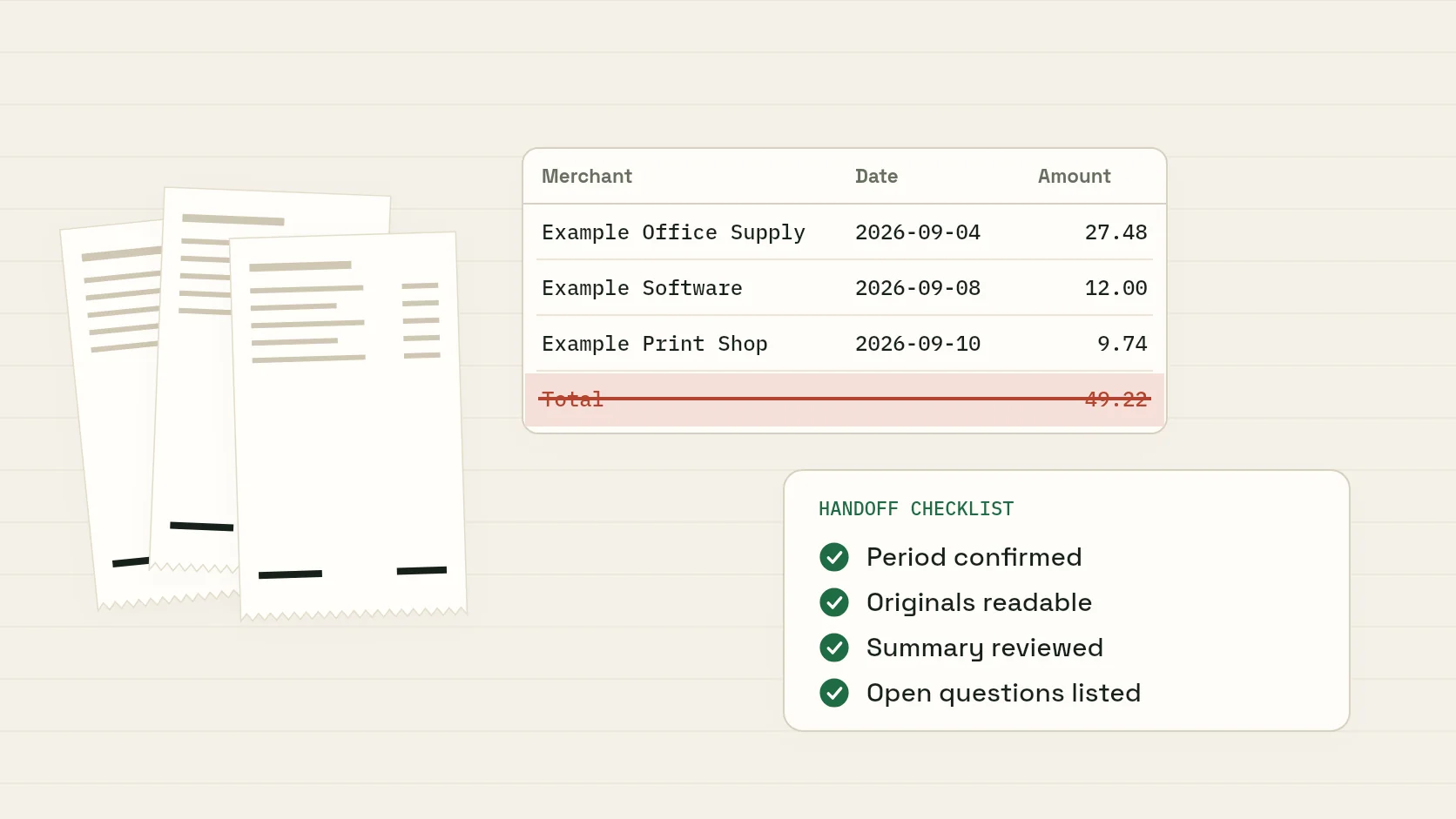
- 06Before handing records over, ask which summary columns and originals the recipient needs. Test one link or exported file as the recipient would.
In ReceiptNest, upload a photo or PDF, or deliberately forward an email receipt. On the web, Collections can group receipts for a project. A monthly or collection CSV provides merchant, date, and amount; keep allocation notes and the source documents available separately.Inspect the actual CSV columns and sample
Test the system before you put the paper away
Pick an older purchase and try to find its original using only the month, merchant, or project. Open the document and zoom in on the itemized details and final total. If a shared folder is involved, check the recipient’s access with a harmless example before sending business records.
Keep any backups your recordkeeping process requires. A spreadsheet total and a folder of originals serve different jobs: the sheet helps you review purchases, and the documents let you check what each row represents.Use the accountant handoff checklist
FAQ
Should I organize receipts by month or by category?
Month folders give each original a predictable home. Use spreadsheet columns, tags, or receipt-app categories for a second view without creating several competing copies of the same purchase.
Can I use Google Drive or another cloud folder for receipts?
Yes. Save readable originals, keep filenames consistent, and link working spreadsheet rows to the documents. Check that links and access still work before a handoff.
Is a digital receipt folder the same as a receipt organizer?
A folder stores files in a structure you maintain. A receipt organizer adds purchase fields and receipt-focused views. ReceiptNest can extract details from photos and PDFs for review, retain the source document, and export a summary.
Put this into practice with ReceiptNest
Start with one purchase. Check the merchant, date, and amount, then open its original to make sure you can find it again.
Organize your first receiptCreate a free account to get started.