How to Track Business Receipts by Client or Project
Two charges from the same print shop can belong to two different jobs. Use a project name and a short note to keep each purchase easy to find.

Give each active job a short name, save the original receipt, and record which job the purchase belongs to while it’s fresh. Then group those receipts in a project folder or tag them in your spreadsheet. When a client asks for proof of one expense, you can go straight to that job.
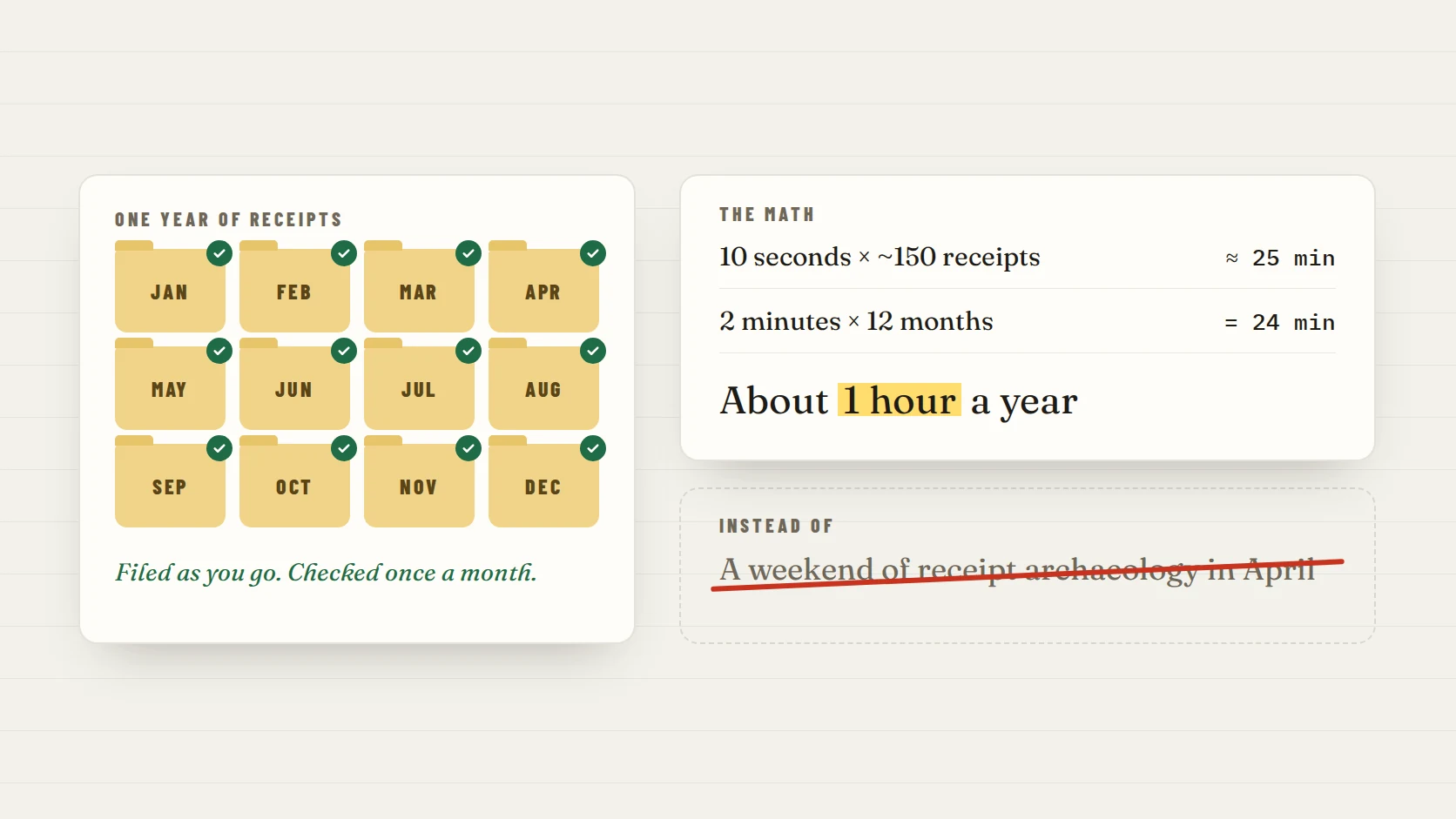
A folder called “November” is useful when you’re reviewing a month. It won’t tell you why you paid the same print shop twice in three days. A project name and a note like “proof prints for the Elm brochure” give you the context a merchant name can’t.
Use the same project name every time
Use a name you’ll recognize when somebody emails you six months later. “Elm · Brochure” works better than “Elm” if that client has more than one job. Use the same name in your receipt folder or spreadsheet and in your project notes.
- Keep the original photo, PDF, or itemized email with the record.
- Check the merchant, purchase date, amount, and currency against the original.
- Record the project and what you bought. Add a reimbursement status in your project notes if you need to track it.
- Give recurring costs shared across your business a place of their own, such as General business.
Sort three purchases from a freelance workweek
| Receipt | Where to put it | What to record |
|---|---|---|
| Print shop · $28 | Elm · Brochure | Proof prints for the client review |
| Print shop · $46 | Harbor · Launch | Display cards for the launch event |
| Office supply store · $60 | Shared purchases | $40 of supplies for Elm and $20 for Harbor, with the itemized receipt linked from both notes |
In the shared purchase, the card was charged once for $60. Keep one original and record the split in your project notes. If you put the full receipt in both project summaries, each will show $60. Use the itemized receipt to verify the amounts and adjust each project’s working summary before you share it.
For U.S. business expense records, the IRS explains that you may need several documents to show what you bought and how you paid. Keep the supporting records together so you can explain a purchase later.IRS guidance on supporting business documents
Create a project collection in ReceiptNest
- 01Upload a receipt photo or PDF, or forward the itemized email to your ReceiptNest address.
- 02Open the receipt to review the extracted details. Add the project and business purpose in Notes.
- 03On the web, open Collections, choose My Collections, and select Add Collection. Name the project and select its receipts.
- 04When you need a summary, open the collection and choose CSV from its download menu. Keep the originals handy for anyone who needs to review them.
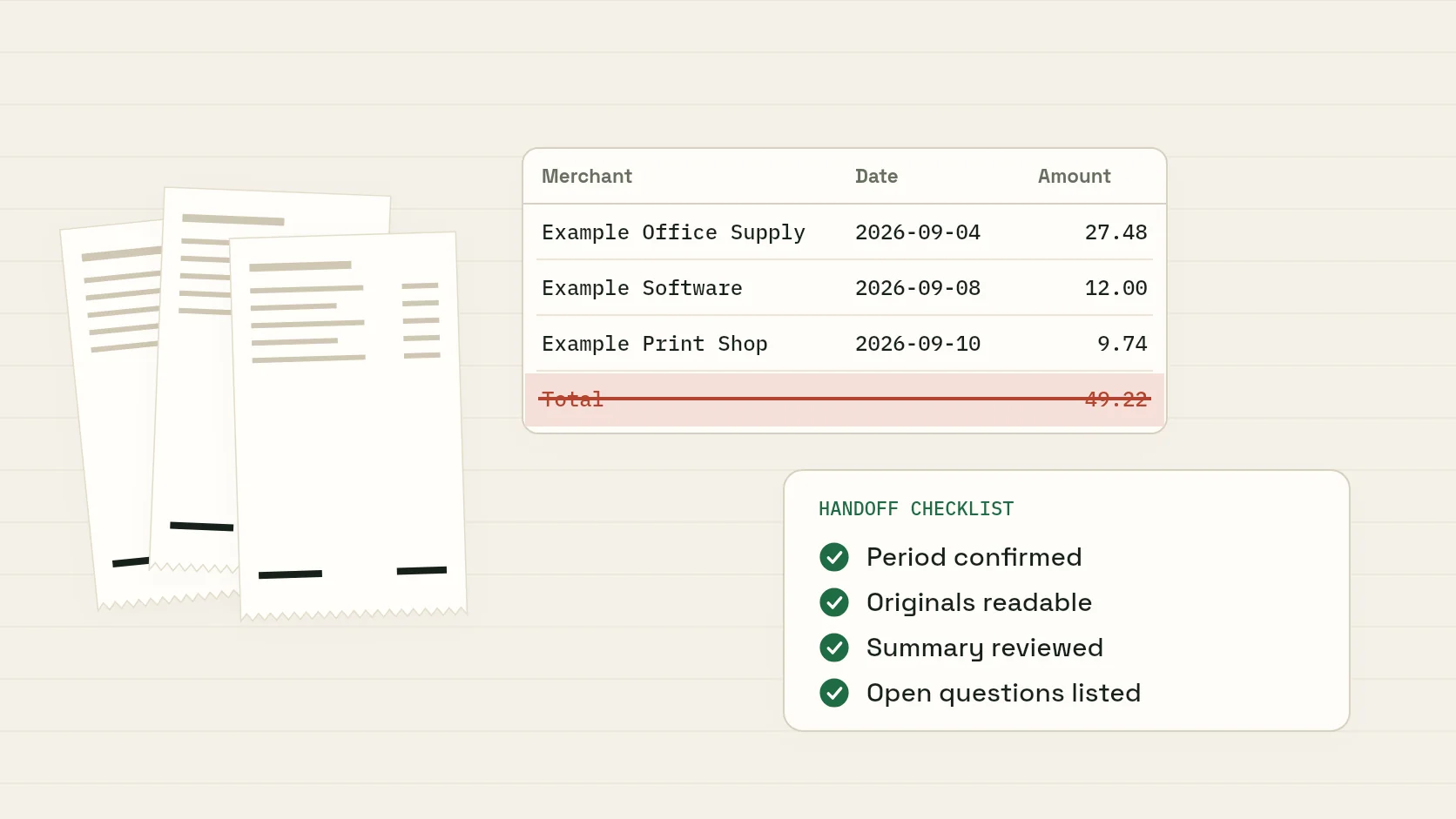
The collection CSV gives you merchant, date, and amount. Keep project notes, allocations, and reimbursement status in your own project records. Review currency and remove the final Total row before calculating a new total in your spreadsheet.See the CSV columns and download a sample
Review the collection before you hand it off
At the end of a job, scan its summary for missing receipts, refunds, and anything you captured twice. Open one original and check that the amount and project note agree with your records. If you’re sending a client a reimbursement request, check which expenses you agreed they would cover and share only the supporting documents they need.Prepare a separate receipt handoff for your accountant
FAQ
What if I already organize receipts by month?
Keep the monthly view for your regular review. Add a project name in your notes, a spreadsheet column, or a collection so you can pull together receipts from a job that spans several months.
Can I use a spreadsheet to track receipts by project?
Yes. Start with columns for project, merchant, date, amount, currency, purpose, and a link to the saved original. Filter by project when you need a summary.
Put this into practice with ReceiptNest
Save one receipt from an active job and add a note while you still remember what it was for.
Track your first project receiptCreate a free account to get started.